 Shortlist
People and sharing
The Users page in Shortlist, turning people on, off and paused, per-person settings, leaving one account's Plex sharing alone, people who leave the server, and accounts Plex restricts.
Everyone the server is shared with, plus you (badged owner, because plex.tv’s user list leaves the owner
out, so Shortlist adds you itself).
The roster has search and filters. Search by name and filter All, Active, Paused, Off or Needs attention. Active means enabled, not paused and not blocked by a Plex restriction profile; a paused person can still have their Enabled switch on.
Account type, request-link status and picks watched stay visible beside each person’s identity. Picks watched is how many different picks they watched in the last 30 days; hover it for when they last watched one. The column that shows Active, Paused, Off or Restricted is headed Status. A Requests column says whether each person is linked to an Overseerr account. A Privacy column says whether the account is hiding every row, is missing hide rules, is left alone by your choice, or is the server owner. Select visible users and Sort sit above the roster at every screen width. All users… closes with Escape or an outside click; its Enable/Disable actions still require confirmation.
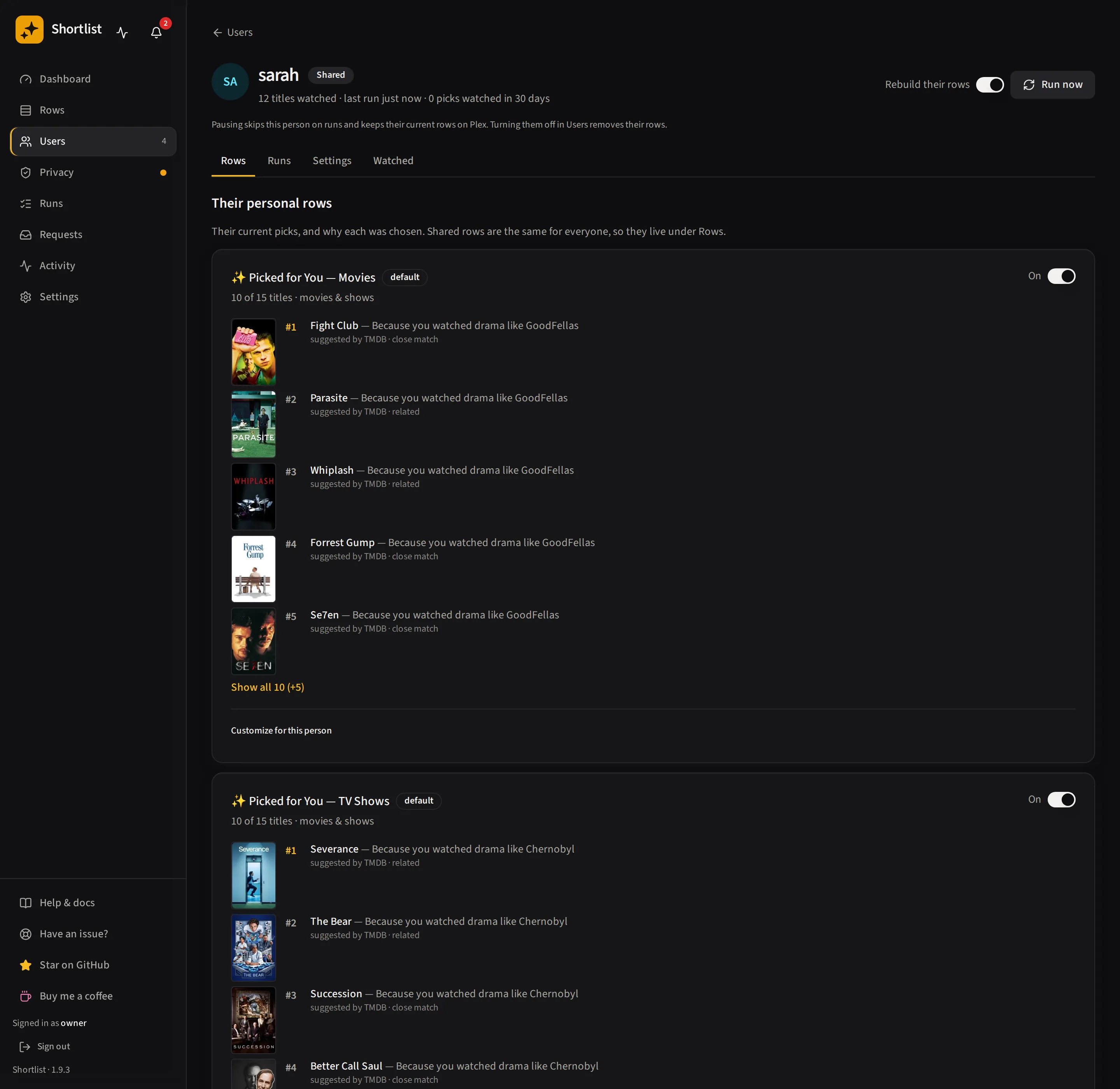
Open a person for Rows, Runs, Settings and Watched; these tabs keep their own links, and keyboard users can move between them with the arrow, Home and End keys.
Keeping the list current
Sync from Plex pulls the roster again after you invite someone new, or to pick up your own owner row on an install that predates it. If it finds somebody who no longer has access to the server, Shortlist turns them off and cleans up their rows; their history is kept, so you can switch them back on if they return.
Turning people on and off
Enable or disable each person, or use Enable all / Disable all at once. Select specific people to Pause rebuilding or Resume rebuilding without changing their Enabled setting.
- Off removes their rows from Plex and rewrites the share filters so they stop seeing the shared rows too. Turning them back on undoes the second half straight away, and their own row returns on the next run.
- Pause keeps their row but skips them on runs. It takes their rows off every shelf, and unpause puts them straight back. Neither waits for a run.
All of this runs as background jobs, visible under Activity.
Per-person settings
Add per-person row overrides: mute a row, resize it, or set its watch-history depth just for them. Opening a person shows their recent watch history (distinct titles, with season and episode numbers for TV), their picks grouped by row (long lists collapse behind a “show more”), and a Run now button to rebuild just that person.
A person’s Settings tab groups Nickname, Request tags, Plex sharing and Blocked titles into labelled sections. Nickname and tag fields save when you leave them. Saving a nickname also renames existing Plex rows; it does not change privacy. Blocking a title keeps it in watch history but stops it shaping recommendations, and you can unblock it from the same section.
Privacy and your watching account
The Privacy page shows what Shortlist knows about each account’s visibility rules, one line per Plex account, including the read time, exceptions and failures. Stored rules and verified effects are different; an unavailable read is reported rather than treated as success.
Watching account explains the owner exception and offers a separate-account flow. It retains the source and destination preview, explicit copy confirmation, partial-result details and undo where available. Reviewing a preview does not itself copy watch history.
Leaving someone’s Plex sharing alone
To keep their own row private, Shortlist adds label!= exclusions to every other account’s Plex
restrictions. Occasionally that fights a restriction you set yourself — most often an allow only
label list on a child’s account, where the whole point is that the account sees nothing but the
labels you named.
Open that person, go to Settings → Plex sharing, and turn off Manage their Plex sharing settings. Shortlist takes back out the exclusions it added and never touches that account again. Their row in the Users list is badged Sharing untouched so you can see it at a glance, and the Privacy page marks them as left alone by your choice instead of reporting them as a fault.
The trade-off, plainly: that account can then see other people’s rows, unless — as with an allow-only list — its own Plex restrictions already keep it away from them. Everyone else still hides this person’s row as normal, so leaving one account alone never exposes their row to the rest of the server.
This is not the same as switching someone off. Off means “no row for them” and still rewrites their filters so they stop seeing everyone else’s rows — unless you have also left their sharing alone, which wins, because it means “don’t touch this account” full stop. The two are independent: someone can have a row and untouched sharing.
One thing is deliberately left in place: if you have a shared row limited to certain people, the entry hiding it from everyone else stays. That entry is the only thing keeping that row away from people you didn’t pick, so removing it would undo a choice you made on the row itself. The catch is that later changes to who a shared row is for stop reaching a left-alone account — turn management back on if you need them to pick those up.
When someone leaves your server
Removing a person from your Plex share (or deleting a Plex Home user) is picked up by the daily user
sync. Shortlist switches them off, deletes their rows from the server, and badges them Left the
server in the Users list — distinct from an account you switched off, which is the same
disabled state but means something completely different.
Two safety limits keep that sweep from acting on a bad read of plex.tv, because it deletes collections and runs unattended: an empty roster is ignored entirely, and if more than half your enabled accounts appear to vanish at once, nothing happens and an error is recorded instead. Both cases are far more likely to be a truncated response than a real mass departure.
A departed row stays in the list so you can see what happened. Remove deletes that person’s pick history and run history, and their row disappears from the list. It keeps one thing: a copy of their original Plex share settings from before Shortlist touched them, so uninstalling can still put their account back exactly as it was.
You do not have to clean up their share filters. Once their row is gone from the server, the next
privacy pass drops the leftover label!= entry from everyone else’s filters on its own — but only
once two independent checks agree the row is really gone, never on the strength of one read.
Accounts Plex restricts
Accounts with a Plex restriction profile (Younger Kid / Older Kid / Teen) are badged with that profile’s name. Plex usually hides collections from them, so no row is built. Plex also refuses the privacy filters Shortlist writes, so those accounts are left out of them.
Both go away by setting Restriction Profile → None in Plex → Settings → Users & Sharing. You can still limit them by rating or label there, which Plex only permits once the profile is None. A Plex Home account with no profile is an ordinary user: it gets a row and privacy filters like anybody else.
“Sees N rows of others’”. “Usually” is doing real work in that first paragraph: a Younger Kid account sees no collections at all, but an Older Kid account can see them. Since Plex refuses a privacy filter for any profiled account, such an account can end up seeing rows built for other people — and nothing Shortlist writes can hide them, because hiding a row is the filter Plex is refusing. Every run now checks each profiled account with that account’s own token and badges it here, on the person’s page, and as a dashboard alert if it finds any.
Two fixes, both yours to make. Set that account’s Restriction Profile → None, which lets the normal filter apply and hides everyone else’s rows from them; or turn the person off in Shortlist, which leaves them out of rows entirely so there is nothing of anyone else’s to find.
Edit this page on GitHub